EN
EN  Romana
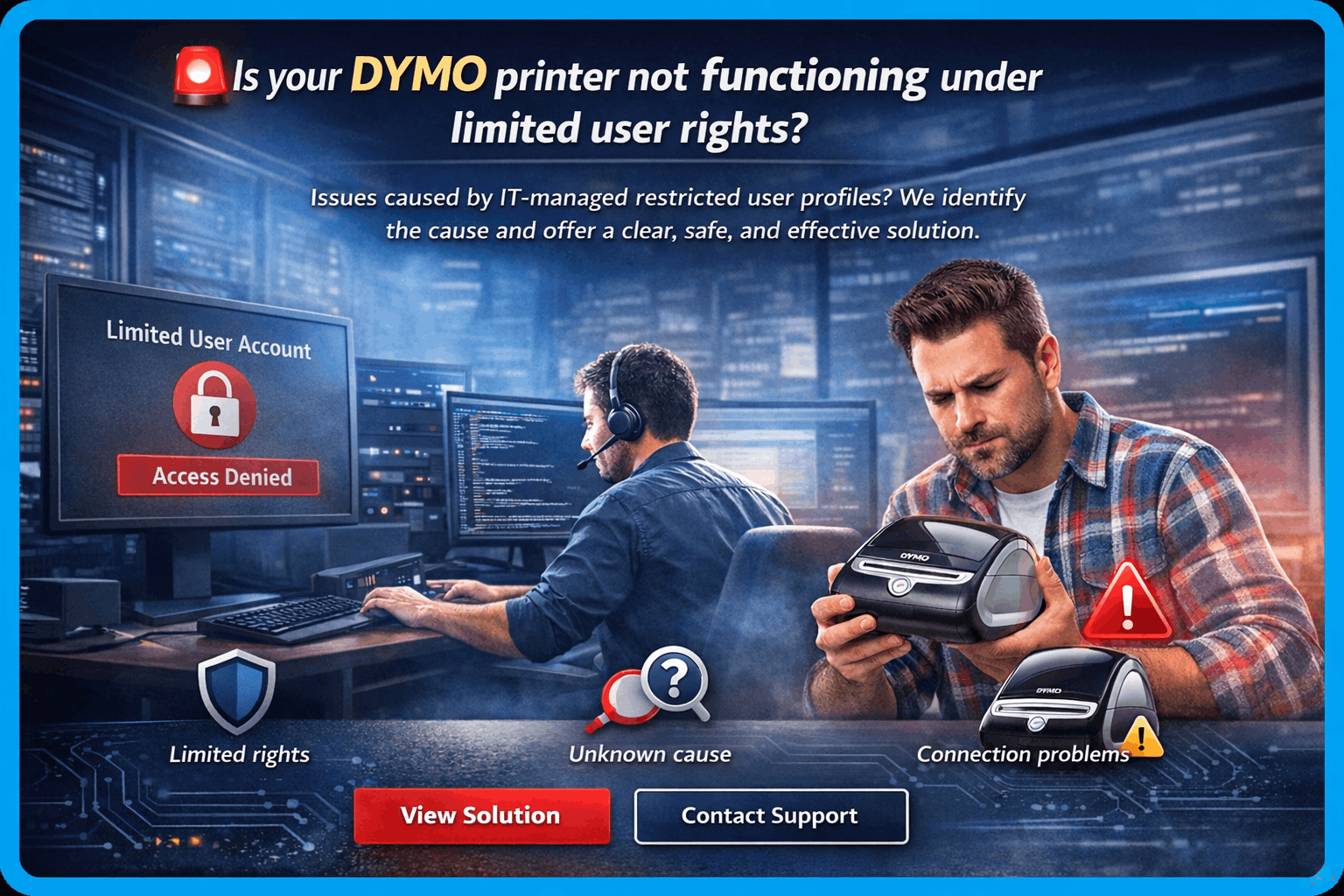
🚨 DYMO printer issue in restricted user environments?
Issues caused by restricted user profiles managed by IT

What is happening?
We have identified a situation that can be consistently reproduced in the following context:
The user has limited rights on the computer.
The profile is managed by the IT department.
The DYMO printer does not function properly or a connection error appears.
⚠ Important: Limited user rights should not normally cause this issue. There is an additional, yet unidentified factor contributing to this situation.
🔎 What do we recommend?
If you are experiencing this issue, we recommend:
📩 Contact our support team.
We would like to analyze each case in detail to identify the root cause and provide a permanent solution.
🛠 Temporary Solution – Recommended Steps
For users receiving direct assistance, please follow the steps below exactly:
1️⃣ Disconnect the printer
🔌 Unplug all cables from the printer.
2️⃣ Close DYMO and Office applications
🖥 Make sure that:
All DYMO applications are closed (including web services).
All Microsoft Office applications are completely closed.
3️⃣ Download the driver removal tool
🌐 Access the following link:
https://github.com/dymosoftware/Drivers/blob/main/LW5xx_245/LwDrvTool.exe
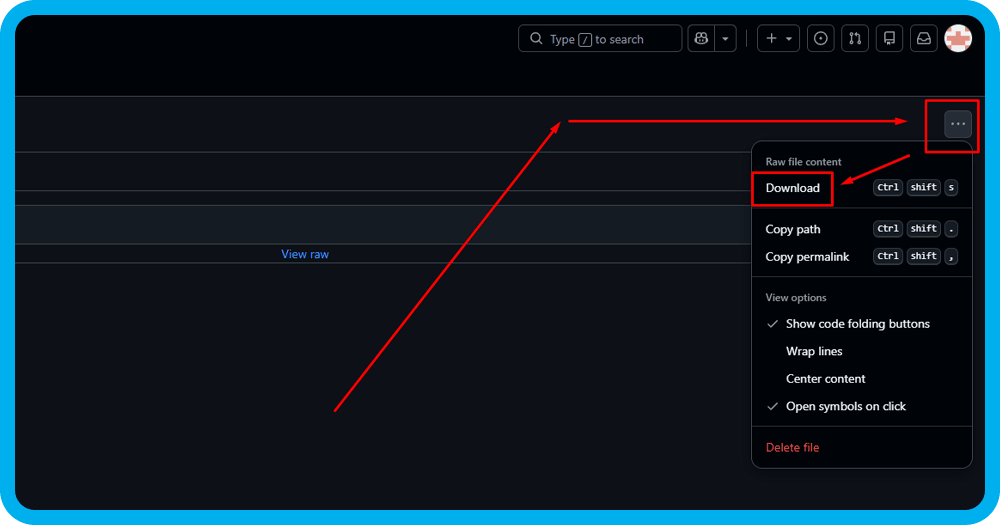
➡ On the right side, click on the three dots (...)
➡ Select Download
4️⃣ Run the LWDrvTool utility
⚙ Launch the file LWDrvTool.exe
5️⃣ Delete the drivers
🗑 Select the Delete Drivers option
➡ Follow the on-screen instructions.
6️⃣ Install the latest DYMO version
📥 If not already installed, download the latest version of the DYMO software:
https://www.dymo.co.uk/support?cfid=online-support
7️⃣ Restart the computer
🔄 Perform a full system restart.
8️⃣ Reconnect the printer
🔌 Plug all cables back in.
💻 Connect the printer to the computer.
✅ What do you gain after completing these steps?
✔ Complete removal of corrupted drivers
✔ Clean installation of the latest software version
✔ Reset of the printer connection
✔ High chances of immediate issue resolution